> ## Documentation Index
> Fetch the complete documentation index at: https://developer.kodexa.ai/llms.txt
> Use this file to discover all available pages before exploring further.
# Configure intakes in Studio
> Configure document intake endpoints in Kodexa Studio for automated ingestion, letting external systems submit documents and start Activity Plans.
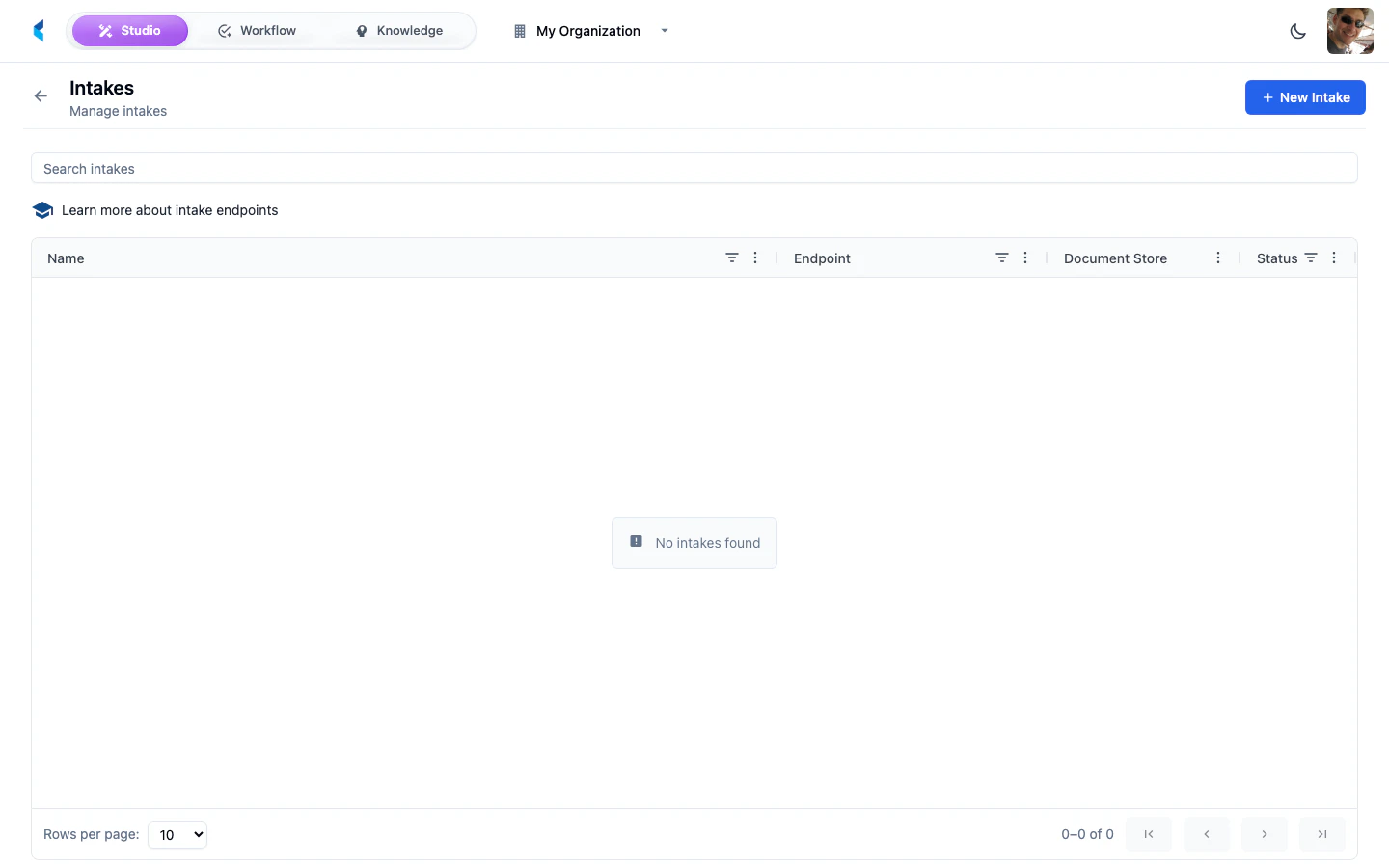
Intakes provide automated document ingestion endpoints. Each intake defines a way for external systems to submit documents into a specific document store, enrich or reject the upload, and start the right Activity Plan for the business process.
 ## How Intakes Work
An intake creates an HTTP endpoint that external systems can send documents to. When a document arrives at an intake endpoint:
1. The document is uploaded to the configured document store
2. If a script is configured, it runs to validate or enrich the document metadata
3. A document family is created for tracking
4. If an Activity Plan is configured or returned by the script, an Activity is started
5. Any configured knowledge features are assigned to the document
6. Domain events are published for downstream automation and audit
## Upload Endpoint
Each intake exposes an upload endpoint at:
```
POST /api/intake/{orgSlug}/{intakeSlug}
```
For example, an intake with slug `invoice-upload` in organization `acme-corp` would be available at:
```
POST /api/intake/acme-corp/invoice-upload
```
### Single File Upload
```bash theme={null}
curl -X POST https://platform.kodexa.ai/api/intake/acme-corp/invoice-upload \
-H "x-api-key: " \
-F "file=@invoice.pdf" \
-F 'metadata={"vendor": "Acme Inc", "department": "finance"}'
```
### Multiple File Upload
When **Allow Multiple Files** is enabled on the intake, you can upload multiple files in a single request:
```bash theme={null}
curl -X POST https://platform.kodexa.ai/api/intake/acme-corp/invoice-upload \
-H "x-api-key: " \
-F "file=@invoice1.pdf" \
-F "file=@invoice2.pdf" \
-F 'metadata=[{"vendor": "Acme"}, {"vendor": "Globex"}]'
```
When providing metadata for multiple files, use a JSON array where each element corresponds to a file by index. If a single JSON object is provided instead, it is applied to all files.
### Request Parameters
| Parameter | Type | Required | Description |
| ------------------- | -------------- | -------- | ------------------------------------------------------------------------------------------------------------------------------------------------ |
| `file` | multipart file | Yes | One or more files to upload |
| `path` | string | No | Document path in the store (defaults to filename) |
| `metadata` | JSON | No | Key-value metadata to attach to the document |
| `documentVersion` | string | No | Version identifier stored on the content object |
| `externalData` | JSON | No | External data JSON object injected into the KDDB document under key `"default"`. Accessible via `doc.get_external_data()` in processing modules. |
| `labels` | string | No | Comma-separated label names to assign (normalized to uppercase, created if new) |
| `statusId` | string | No | Document status ID to set on the document family |
| `knowledgeFeatures` | JSON | No | Array of `{"id": "..."}` objects — merged with intake-configured features |
### Response
Returns HTTP `201` on success with the created document family object. For multiple files, returns an array of document family objects.
External data is stored directly in the KDDB document, not in a separate database table. Processing modules can access it via `doc.get_external_data()` (Python) or `doc.getExternalData()` (TypeScript/WASM). The platform UI reads it directly from the loaded document.
## Configuring an Intake
Click the add button on the Intakes page. Provide a name and slug for the intake. The slug determines the upload endpoint URL.
Choose the document store where incoming documents should be stored.
Set up optional features such as scripting, Activity Plans, knowledge features, and metadata.
### Intake Settings
| Setting | Description |
| ------------------------ | ---------------------------------------------------- |
| **Name** | Human-readable label for the intake |
| **Slug** | URL-safe identifier used in the upload endpoint path |
| **Description** | Optional description of the intake's purpose |
| **Active** | When disabled, the intake rejects all uploads |
| **Allow Multiple Files** | Enable uploading multiple files in a single request |
| **Target Store** | The document store where uploaded files are saved |
## Script Tab
Intakes support a JavaScript scripting tab that lets you run custom logic on each uploaded file before it is stored. Scripts run in a [Goja](https://github.com/dop251/goja) JavaScript runtime with a 5-second timeout.
### Available Variables
| Variable | Type | Description |
| --------------------- | -------- | ------------------------------------------------------------------- |
| `filename` | string | Original uploaded filename |
| `fileSize` | number | File size in bytes |
| `mimeType` | string | Detected MIME type |
| `metadata` | object | Mutable metadata object (merged from intake config + upload params) |
| `document.text` | string | Extracted text content (first 5 pages for PDFs) |
| `document.pageCount` | number | Page count if available |
| `document.metadata` | object | Document-level metadata |
| `log(level, message)` | function | Write to server logs (`debug`, `info`, `warn`, `error`) |
### Return Value
Scripts return an object that controls how the upload is processed:
```javascript theme={null}
return {
metadata: metadata, // Modified metadata object
reject: false, // Set true to reject the upload
rejectReason: "", // Reason string shown to the caller
activityPlan: "invoice-intake", // Activity Plan slug or activity-plan://orgSlug/slug
title: "Invoice: " + filename, // Optional Activity title override
description: "", // Optional Activity description override
inputs: { // Inputs validated by the Activity Plan
documentType: "invoice",
sourceFilename: filename
}
};
```
| Field | Type | Required | Description |
| -------------- | ------- | -------- | ------------------------------------------------------------------ |
| `metadata` | object | No | Modified metadata — replaces the merged metadata for this document |
| `reject` | boolean | No | Set `true` to reject the upload (returns HTTP 400) |
| `rejectReason` | string | No | Reason shown to the caller when rejected |
| `activityPlan` | string | No | Activity Plan slug or `activity-plan://orgSlug/slug` URI |
| `title` | string | No | Activity title override |
| `description` | string | No | Activity description override |
| `inputs` | object | No | Activity inputs validated against the plan's `inputsSchema` |
#### Activity Plan Selection
When the `activityPlan` field is present in the return value, the script controls which Activity Plan starts for the upload:
* **Bare slug** — starts the Activity Plan with that slug in the current organization
* **`activity-plan://orgSlug/planSlug` URI** — starts the referenced Activity Plan
* **Field omitted entirely** — falls back to the static Activity Plan configured on the intake
The Activity Plan must be bound to a project through project resources. Kodexa attaches the uploaded document family to the Activity automatically and records the document family ID in trigger metadata.
Task Templates are not selected by the intake script in the current model. If the workflow needs human review, the selected Activity Plan should use a [CREATE\_TASK step](/guides/activity-plans/create-task-steps) that references the Task Template.
When scripting is enabled, the static **Activity Plan** dropdown in the Settings tab is disabled. Activity selection moves to the script.
### Example: Validate File Size
```javascript theme={null}
if (fileSize > 50 * 1024 * 1024) {
return {
metadata: metadata,
reject: true,
rejectReason: "File exceeds 50MB limit"
};
}
// Enrich metadata with detected info
metadata["source"] = "intake";
metadata["originalFilename"] = filename;
return {
metadata: metadata,
reject: false,
rejectReason: ""
};
```
### Example: Route by Document Content
```javascript theme={null}
log("info", "Processing: " + filename);
if (document.text.includes("CONFIDENTIAL")) {
metadata["classification"] = "confidential";
metadata["requiresReview"] = "true";
}
return {
metadata: metadata,
reject: false,
rejectReason: ""
};
```
### Example: Dynamic Activity Routing
Route documents to different Activity Plans based on content:
```javascript theme={null}
log("info", "Classifying: " + filename);
if (document.text.indexOf("INVOICE") >= 0) {
var amount = document.text.match(/\$[\d,]+\.?\d*/);
metadata.documentType = "invoice";
return {
metadata: metadata,
reject: false,
activityPlan: "invoice-intake",
title: "Invoice intake: " + filename,
inputs: {
documentType: "invoice",
detectedAmount: amount ? amount[0] : null,
requiresApproval: !!amount
}
};
}
if (document.text.indexOf("CONTRACT") >= 0) {
metadata.documentType = "contract";
return {
metadata: metadata,
reject: false,
activityPlan: "contract-intake",
title: "Contract intake: " + filename,
inputs: {
documentType: "contract"
}
};
}
metadata.documentType = "unknown";
return {
metadata: metadata,
reject: false,
activityPlan: "document-triage",
title: "Triage: " + filename,
inputs: {
documentType: "unknown"
}
};
```
This script inspects the document text and:
* Starts the **invoice intake** Activity Plan for invoices, passing the detected amount
* Starts the **contract intake** Activity Plan for contracts
* Sends unrecognized documents to a **document triage** Activity Plan
* Leaves Task creation decisions inside the Activity Plan step graph
Enable the **Script** toggle to activate script execution. You can disable it without deleting the script code.
### Loading Shared Modules
Intake scripts can load shared JavaScript modules using the **Module Refs** picker in the Script tab. Pre-loaded modules' functions and variables are available in global scope within your intake script, letting you reuse common validation, transformation, or enrichment logic across multiple intakes.
Select one or more [JavaScript modules](/guides/modules/javascript-module) from your organization. They are fetched and executed in order before your intake script runs.
```javascript theme={null}
// Assuming "my-org/validation-helpers" is loaded via Module Refs
if (!validateFileType(mimeType)) {
return { metadata: metadata, reject: true, rejectReason: "Unsupported file type" };
}
metadata["normalized_name"] = cleanFilename(filename);
return {
metadata: metadata,
reject: false,
rejectReason: "",
activityPlan: "document-triage",
inputs: {
sourceFilename: filename
}
};
```
## Activity Plan
### Static Assignment
Select an Activity Plan from the dropdown to automatically start an Activity for each uploaded document. When configured:
* An Activity is started from the selected plan
* The uploaded document family is linked to the Activity
* Activity inputs default to `{}` unless a script supplies `inputs`
* Any human work is created by `CREATE_TASK` steps inside the Activity Plan
This is useful for simple intake workflows where every document should enter the same business process.
### Script-Driven Assignment
When a **processing script** is enabled on the intake, the static Activity Plan dropdown is disabled. Instead, the script controls which Activity Plan starts by returning `activityPlan`, `title`, `description`, and `inputs`. This allows:
* **Conditional routing** — different document types enter different Activity Plans
* **Activity inputs** — pass classification, source-system, priority, or extraction hints into the plan
* **Consistent human work** — create Tasks from `CREATE_TASK` steps inside the plan when review is needed
* **Reusable process design** — keep the business workflow in an Activity Plan instead of embedding it in an intake script
See the [Script Tab](#script-tab) section for the full return value reference and examples.
Activity Plan slugs in the script must resolve to Activity Plans in your organization, and those plans must be bound to a project. If the plan cannot be resolved or started, the upload still succeeds but no Activity is created.
## Knowledge Features
Select one or more knowledge feature types to automatically assign to every document uploaded through this intake. This lets you pre-classify documents at ingestion time — for example, tagging all documents from a specific intake as belonging to a particular vendor or document category.
## Processing Metadata
The **Processing Metadata** section lets you define key-value pairs that are attached to every document uploaded through this intake. These metadata values are available to downstream Activity steps and processing modules.
Metadata is merged in this order (later values override earlier ones):
1. Intake-level metadata (configured here)
2. Metadata extracted from the document file
3. Per-upload metadata (provided in the API request)
4. Script modifications (if a script is enabled)
The following keys are reserved and automatically stripped from the metadata object before storage. Use them as separate form parameters instead: `externalData`, `labels`, `statusId`, `knowledgeFeatures`, `documentVersion`.
Labels are normalized to **uppercase** before storage. For example, `labels=invoice,urgent` creates labels `INVOICE` and `URGENT`. Labels that don't exist in the organization are created automatically.
## API Tokens
The **API Tokens** tab lets you create scoped tokens for machine-to-machine authentication against a specific intake endpoint. Unlike user API keys, intake tokens are scoped to a single intake and bypass user authentication — making them ideal for automated pipelines, third-party integrations, and CI/CD workflows.
### Creating a Token
Select an intake and navigate to the **API Tokens** tab.
Click the add button. Optionally set an expiration date.
The plaintext token (prefixed with `kit_`) is shown **only once**. Copy it immediately and store it securely.
Token values are shown only at creation time. After you close the dialog, only a hint (last 4 characters) is displayed. If you lose the token, you must create a new one.
### Using Intake Tokens
Pass the token in the `x-api-key` header when uploading to the intake endpoint:
```bash theme={null}
curl -X POST https://platform.kodexa.ai/api/intake/acme-corp/invoice-upload \
-H "x-api-key: kit_abc123..." \
-F "file=@invoice.pdf"
```
Intake tokens only grant access to the specific intake they were created for. They cannot be used to access other API endpoints.
### Managing Tokens
The API Tokens tab displays all tokens for the intake with their creation date, hint, and expiration status. Click the delete button to revoke a token. A confirmation dialog is shown before deletion.
### Token Security
* Tokens are **hashed with SHA-256** before storage — the platform never stores plaintext tokens
* Each token is scoped to a single intake and cannot access other resources
* Tokens can have optional expiration dates
* Revoked tokens take effect immediately
Each intake provides a unique URL. Keep intake URLs and authentication credentials secure, as anyone with access can submit documents to your organization.
## How Intakes Work
An intake creates an HTTP endpoint that external systems can send documents to. When a document arrives at an intake endpoint:
1. The document is uploaded to the configured document store
2. If a script is configured, it runs to validate or enrich the document metadata
3. A document family is created for tracking
4. If an Activity Plan is configured or returned by the script, an Activity is started
5. Any configured knowledge features are assigned to the document
6. Domain events are published for downstream automation and audit
## Upload Endpoint
Each intake exposes an upload endpoint at:
```
POST /api/intake/{orgSlug}/{intakeSlug}
```
For example, an intake with slug `invoice-upload` in organization `acme-corp` would be available at:
```
POST /api/intake/acme-corp/invoice-upload
```
### Single File Upload
```bash theme={null}
curl -X POST https://platform.kodexa.ai/api/intake/acme-corp/invoice-upload \
-H "x-api-key: " \
-F "file=@invoice.pdf" \
-F 'metadata={"vendor": "Acme Inc", "department": "finance"}'
```
### Multiple File Upload
When **Allow Multiple Files** is enabled on the intake, you can upload multiple files in a single request:
```bash theme={null}
curl -X POST https://platform.kodexa.ai/api/intake/acme-corp/invoice-upload \
-H "x-api-key: " \
-F "file=@invoice1.pdf" \
-F "file=@invoice2.pdf" \
-F 'metadata=[{"vendor": "Acme"}, {"vendor": "Globex"}]'
```
When providing metadata for multiple files, use a JSON array where each element corresponds to a file by index. If a single JSON object is provided instead, it is applied to all files.
### Request Parameters
| Parameter | Type | Required | Description |
| ------------------- | -------------- | -------- | ------------------------------------------------------------------------------------------------------------------------------------------------ |
| `file` | multipart file | Yes | One or more files to upload |
| `path` | string | No | Document path in the store (defaults to filename) |
| `metadata` | JSON | No | Key-value metadata to attach to the document |
| `documentVersion` | string | No | Version identifier stored on the content object |
| `externalData` | JSON | No | External data JSON object injected into the KDDB document under key `"default"`. Accessible via `doc.get_external_data()` in processing modules. |
| `labels` | string | No | Comma-separated label names to assign (normalized to uppercase, created if new) |
| `statusId` | string | No | Document status ID to set on the document family |
| `knowledgeFeatures` | JSON | No | Array of `{"id": "..."}` objects — merged with intake-configured features |
### Response
Returns HTTP `201` on success with the created document family object. For multiple files, returns an array of document family objects.
External data is stored directly in the KDDB document, not in a separate database table. Processing modules can access it via `doc.get_external_data()` (Python) or `doc.getExternalData()` (TypeScript/WASM). The platform UI reads it directly from the loaded document.
## Configuring an Intake
Click the add button on the Intakes page. Provide a name and slug for the intake. The slug determines the upload endpoint URL.
Choose the document store where incoming documents should be stored.
Set up optional features such as scripting, Activity Plans, knowledge features, and metadata.
### Intake Settings
| Setting | Description |
| ------------------------ | ---------------------------------------------------- |
| **Name** | Human-readable label for the intake |
| **Slug** | URL-safe identifier used in the upload endpoint path |
| **Description** | Optional description of the intake's purpose |
| **Active** | When disabled, the intake rejects all uploads |
| **Allow Multiple Files** | Enable uploading multiple files in a single request |
| **Target Store** | The document store where uploaded files are saved |
## Script Tab
Intakes support a JavaScript scripting tab that lets you run custom logic on each uploaded file before it is stored. Scripts run in a [Goja](https://github.com/dop251/goja) JavaScript runtime with a 5-second timeout.
### Available Variables
| Variable | Type | Description |
| --------------------- | -------- | ------------------------------------------------------------------- |
| `filename` | string | Original uploaded filename |
| `fileSize` | number | File size in bytes |
| `mimeType` | string | Detected MIME type |
| `metadata` | object | Mutable metadata object (merged from intake config + upload params) |
| `document.text` | string | Extracted text content (first 5 pages for PDFs) |
| `document.pageCount` | number | Page count if available |
| `document.metadata` | object | Document-level metadata |
| `log(level, message)` | function | Write to server logs (`debug`, `info`, `warn`, `error`) |
### Return Value
Scripts return an object that controls how the upload is processed:
```javascript theme={null}
return {
metadata: metadata, // Modified metadata object
reject: false, // Set true to reject the upload
rejectReason: "", // Reason string shown to the caller
activityPlan: "invoice-intake", // Activity Plan slug or activity-plan://orgSlug/slug
title: "Invoice: " + filename, // Optional Activity title override
description: "", // Optional Activity description override
inputs: { // Inputs validated by the Activity Plan
documentType: "invoice",
sourceFilename: filename
}
};
```
| Field | Type | Required | Description |
| -------------- | ------- | -------- | ------------------------------------------------------------------ |
| `metadata` | object | No | Modified metadata — replaces the merged metadata for this document |
| `reject` | boolean | No | Set `true` to reject the upload (returns HTTP 400) |
| `rejectReason` | string | No | Reason shown to the caller when rejected |
| `activityPlan` | string | No | Activity Plan slug or `activity-plan://orgSlug/slug` URI |
| `title` | string | No | Activity title override |
| `description` | string | No | Activity description override |
| `inputs` | object | No | Activity inputs validated against the plan's `inputsSchema` |
#### Activity Plan Selection
When the `activityPlan` field is present in the return value, the script controls which Activity Plan starts for the upload:
* **Bare slug** — starts the Activity Plan with that slug in the current organization
* **`activity-plan://orgSlug/planSlug` URI** — starts the referenced Activity Plan
* **Field omitted entirely** — falls back to the static Activity Plan configured on the intake
The Activity Plan must be bound to a project through project resources. Kodexa attaches the uploaded document family to the Activity automatically and records the document family ID in trigger metadata.
Task Templates are not selected by the intake script in the current model. If the workflow needs human review, the selected Activity Plan should use a [CREATE\_TASK step](/guides/activity-plans/create-task-steps) that references the Task Template.
When scripting is enabled, the static **Activity Plan** dropdown in the Settings tab is disabled. Activity selection moves to the script.
### Example: Validate File Size
```javascript theme={null}
if (fileSize > 50 * 1024 * 1024) {
return {
metadata: metadata,
reject: true,
rejectReason: "File exceeds 50MB limit"
};
}
// Enrich metadata with detected info
metadata["source"] = "intake";
metadata["originalFilename"] = filename;
return {
metadata: metadata,
reject: false,
rejectReason: ""
};
```
### Example: Route by Document Content
```javascript theme={null}
log("info", "Processing: " + filename);
if (document.text.includes("CONFIDENTIAL")) {
metadata["classification"] = "confidential";
metadata["requiresReview"] = "true";
}
return {
metadata: metadata,
reject: false,
rejectReason: ""
};
```
### Example: Dynamic Activity Routing
Route documents to different Activity Plans based on content:
```javascript theme={null}
log("info", "Classifying: " + filename);
if (document.text.indexOf("INVOICE") >= 0) {
var amount = document.text.match(/\$[\d,]+\.?\d*/);
metadata.documentType = "invoice";
return {
metadata: metadata,
reject: false,
activityPlan: "invoice-intake",
title: "Invoice intake: " + filename,
inputs: {
documentType: "invoice",
detectedAmount: amount ? amount[0] : null,
requiresApproval: !!amount
}
};
}
if (document.text.indexOf("CONTRACT") >= 0) {
metadata.documentType = "contract";
return {
metadata: metadata,
reject: false,
activityPlan: "contract-intake",
title: "Contract intake: " + filename,
inputs: {
documentType: "contract"
}
};
}
metadata.documentType = "unknown";
return {
metadata: metadata,
reject: false,
activityPlan: "document-triage",
title: "Triage: " + filename,
inputs: {
documentType: "unknown"
}
};
```
This script inspects the document text and:
* Starts the **invoice intake** Activity Plan for invoices, passing the detected amount
* Starts the **contract intake** Activity Plan for contracts
* Sends unrecognized documents to a **document triage** Activity Plan
* Leaves Task creation decisions inside the Activity Plan step graph
Enable the **Script** toggle to activate script execution. You can disable it without deleting the script code.
### Loading Shared Modules
Intake scripts can load shared JavaScript modules using the **Module Refs** picker in the Script tab. Pre-loaded modules' functions and variables are available in global scope within your intake script, letting you reuse common validation, transformation, or enrichment logic across multiple intakes.
Select one or more [JavaScript modules](/guides/modules/javascript-module) from your organization. They are fetched and executed in order before your intake script runs.
```javascript theme={null}
// Assuming "my-org/validation-helpers" is loaded via Module Refs
if (!validateFileType(mimeType)) {
return { metadata: metadata, reject: true, rejectReason: "Unsupported file type" };
}
metadata["normalized_name"] = cleanFilename(filename);
return {
metadata: metadata,
reject: false,
rejectReason: "",
activityPlan: "document-triage",
inputs: {
sourceFilename: filename
}
};
```
## Activity Plan
### Static Assignment
Select an Activity Plan from the dropdown to automatically start an Activity for each uploaded document. When configured:
* An Activity is started from the selected plan
* The uploaded document family is linked to the Activity
* Activity inputs default to `{}` unless a script supplies `inputs`
* Any human work is created by `CREATE_TASK` steps inside the Activity Plan
This is useful for simple intake workflows where every document should enter the same business process.
### Script-Driven Assignment
When a **processing script** is enabled on the intake, the static Activity Plan dropdown is disabled. Instead, the script controls which Activity Plan starts by returning `activityPlan`, `title`, `description`, and `inputs`. This allows:
* **Conditional routing** — different document types enter different Activity Plans
* **Activity inputs** — pass classification, source-system, priority, or extraction hints into the plan
* **Consistent human work** — create Tasks from `CREATE_TASK` steps inside the plan when review is needed
* **Reusable process design** — keep the business workflow in an Activity Plan instead of embedding it in an intake script
See the [Script Tab](#script-tab) section for the full return value reference and examples.
Activity Plan slugs in the script must resolve to Activity Plans in your organization, and those plans must be bound to a project. If the plan cannot be resolved or started, the upload still succeeds but no Activity is created.
## Knowledge Features
Select one or more knowledge feature types to automatically assign to every document uploaded through this intake. This lets you pre-classify documents at ingestion time — for example, tagging all documents from a specific intake as belonging to a particular vendor or document category.
## Processing Metadata
The **Processing Metadata** section lets you define key-value pairs that are attached to every document uploaded through this intake. These metadata values are available to downstream Activity steps and processing modules.
Metadata is merged in this order (later values override earlier ones):
1. Intake-level metadata (configured here)
2. Metadata extracted from the document file
3. Per-upload metadata (provided in the API request)
4. Script modifications (if a script is enabled)
The following keys are reserved and automatically stripped from the metadata object before storage. Use them as separate form parameters instead: `externalData`, `labels`, `statusId`, `knowledgeFeatures`, `documentVersion`.
Labels are normalized to **uppercase** before storage. For example, `labels=invoice,urgent` creates labels `INVOICE` and `URGENT`. Labels that don't exist in the organization are created automatically.
## API Tokens
The **API Tokens** tab lets you create scoped tokens for machine-to-machine authentication against a specific intake endpoint. Unlike user API keys, intake tokens are scoped to a single intake and bypass user authentication — making them ideal for automated pipelines, third-party integrations, and CI/CD workflows.
### Creating a Token
Select an intake and navigate to the **API Tokens** tab.
Click the add button. Optionally set an expiration date.
The plaintext token (prefixed with `kit_`) is shown **only once**. Copy it immediately and store it securely.
Token values are shown only at creation time. After you close the dialog, only a hint (last 4 characters) is displayed. If you lose the token, you must create a new one.
### Using Intake Tokens
Pass the token in the `x-api-key` header when uploading to the intake endpoint:
```bash theme={null}
curl -X POST https://platform.kodexa.ai/api/intake/acme-corp/invoice-upload \
-H "x-api-key: kit_abc123..." \
-F "file=@invoice.pdf"
```
Intake tokens only grant access to the specific intake they were created for. They cannot be used to access other API endpoints.
### Managing Tokens
The API Tokens tab displays all tokens for the intake with their creation date, hint, and expiration status. Click the delete button to revoke a token. A confirmation dialog is shown before deletion.
### Token Security
* Tokens are **hashed with SHA-256** before storage — the platform never stores plaintext tokens
* Each token is scoped to a single intake and cannot access other resources
* Tokens can have optional expiration dates
* Revoked tokens take effect immediately
Each intake provides a unique URL. Keep intake URLs and authentication credentials secure, as anyone with access can submit documents to your organization.