> ## Documentation Index
> Fetch the complete documentation index at: https://developer.kodexa.ai/llms.txt
> Use this file to discover all available pages before exploring further.
# Creating Templates from Projects
> Package an existing Kodexa project as a reusable project template, capturing its complete configuration as a blueprint for creating new projects.
You can create a project template from any existing project, capturing its complete configuration as a reusable blueprint for new projects.
 ## What Gets Included
When you create a template from a project, the following are captured:
* Project settings and options
* Document store configurations
* Data definitions (taxonomies)
* Assistant configurations and pipeline setup
* Data forms
* Scheduled job configurations
* Project resource associations
Templates capture configuration only, not data. Documents, extracted data, and execution history are not included in the template.
## Creating a Template
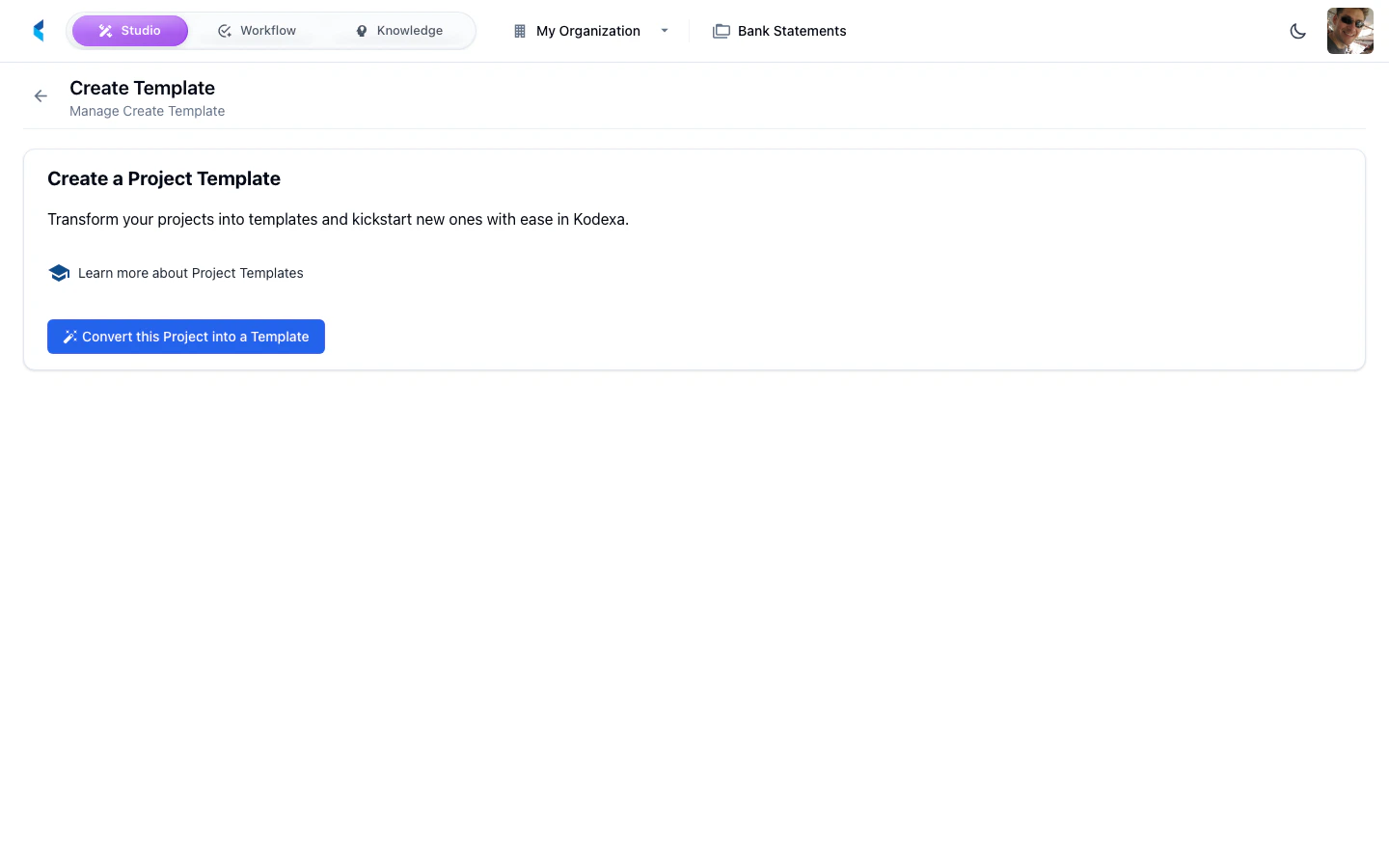
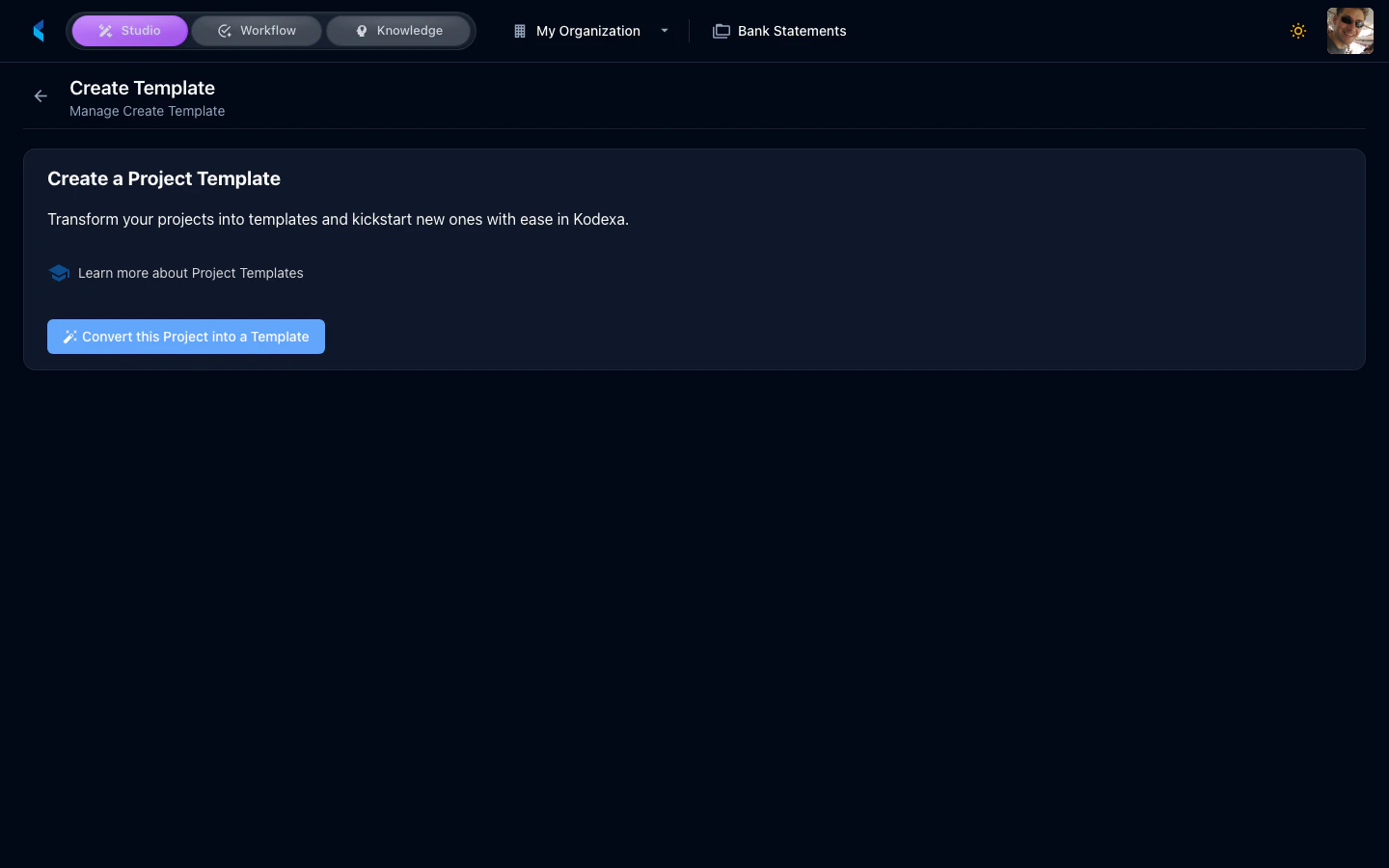
From the Project Home, click the Create Template card.
Set the template name, description, and any metadata.
Verify which resources and configurations will be included in the template.
The template is created and becomes available in the Project Marketplace for creating new projects.
## What Gets Included
When you create a template from a project, the following are captured:
* Project settings and options
* Document store configurations
* Data definitions (taxonomies)
* Assistant configurations and pipeline setup
* Data forms
* Scheduled job configurations
* Project resource associations
Templates capture configuration only, not data. Documents, extracted data, and execution history are not included in the template.
## Creating a Template
From the Project Home, click the Create Template card.
Set the template name, description, and any metadata.
Verify which resources and configurations will be included in the template.
The template is created and becomes available in the Project Marketplace for creating new projects.