> ## Documentation Index
> Fetch the complete documentation index at: https://developer.kodexa.ai/llms.txt
> Use this file to discover all available pages before exploring further.
# Planning Mode
> Use Planning Mode in Kodexa Studio to design automated multi-step task workflows with plan templates that combine executions, sub-tasks, scripts, and agents.
Planning Mode provides a structured approach to designing automated multi-step workflows for tasks. A plan template defines the sequence of steps — executions, sub-tasks, scripts, and agents — that run when a task is created from a task template.
**Planning Mode (the task-template `planTemplate` block) is a legacy mechanism**. For new workflow authoring, use [Activity Plans](/guides/activity-plans/index) — they are the org-scoped, fully-supported replacement with a richer step surface (`CREATE_TASK`, `EXECUTION`, `BRIDGE_CALL`, `SCRIPT`, `LLM`, `AGENT`, `APPROVAL`) and the platform's complete dependency / materialisation pipeline. The page below still documents Planning Mode for teams maintaining existing plan-templated task templates; the wire format below is canonical so a legacy template will continue to work, but cross-step orchestration belongs in an Activity Plan.
 ## Overview
Planning Mode allows you to:
* Design multi-step processing workflows as a directed acyclic graph (DAG)
* Chain together module executions, human review tasks, JavaScript routing scripts, and AI agents
* Define dependencies between steps, including action-qualified edges (e.g., proceed only if "Approve" was clicked)
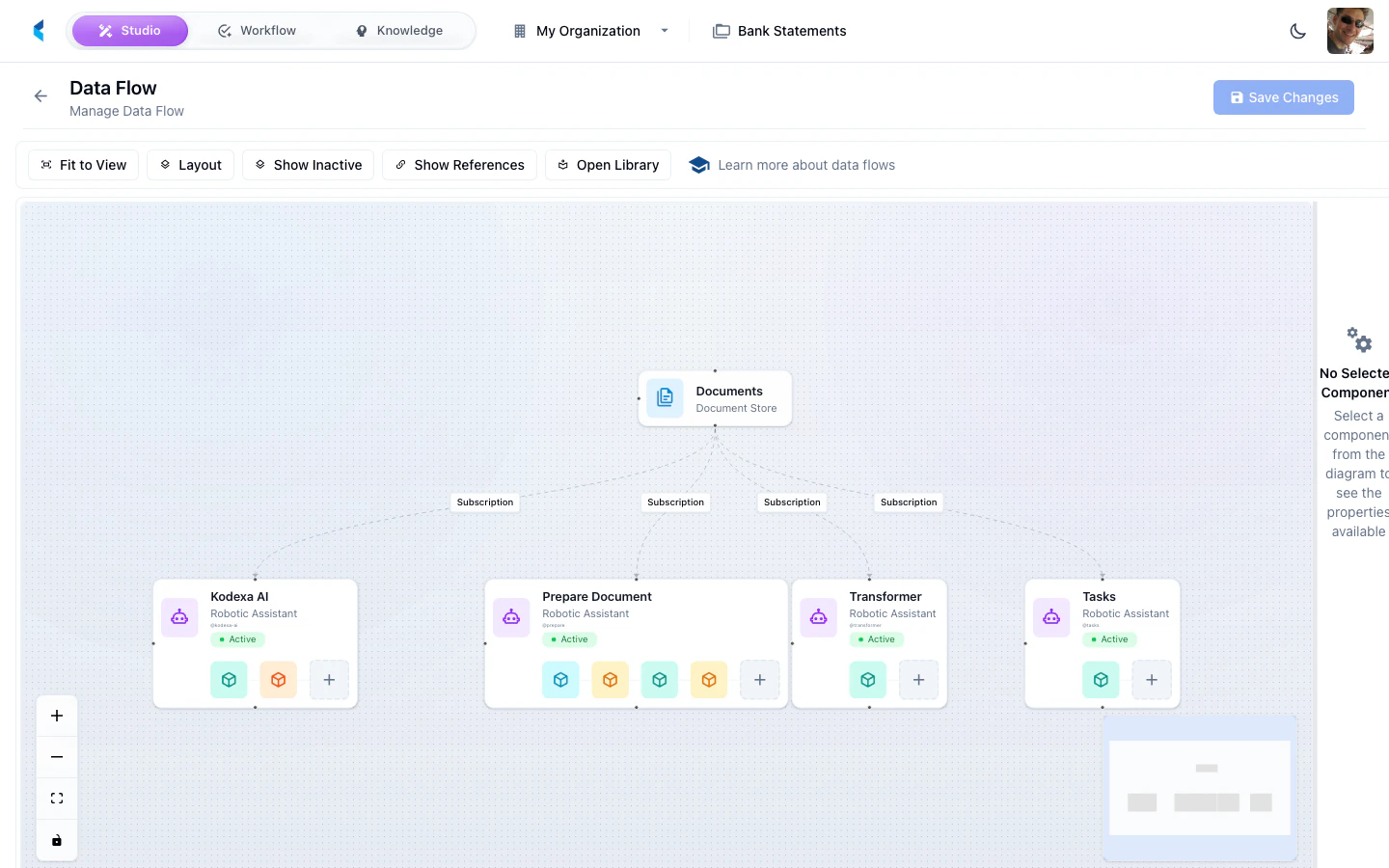
* Visualize the workflow as an interactive flow diagram
* Monitor execution progress with automatic deadlock detection
## The Flow Editor
The visual flow editor provides a drag-and-drop interface for designing workflows:
* **Left panel** — Node palette with available step types. Drag nodes onto the canvas to add them.
* **Center** — Interactive canvas showing nodes and edges. Draw connections between nodes to set dependencies.
* **Right panel** — Properties panel for the selected node. Configure step-specific settings here.
Nodes are color-coded by type:
| Type | Color | Description |
| ------------ | ------ | ------------------------------------------------------------------- |
| EXECUTION | Blue | Module execution |
| CREATE\_TASK | Green | Human review sub-task (legacy alias: `TASK`) |
| SCRIPT | Violet | JavaScript routing/processing |
| AGENT | Amber | AI agent processing |
| LLM | Purple | Bounded prompt execution (legacy alias: `AI_PLANNER` / `AI_PROMPT`) |
Double-click a node to zoom and center it. Use the mini-map in the corner for navigation in large workflows.
## Plan Node Types
Each step in a plan is a **planned item** with a specific type. The platform supports the following node types:
### EXECUTION
Runs a module (such as a parser, extractor, or classifier) on the task's documents.
| Field | Description |
| ----------- | -------------------------------------------------------------------------- |
| `moduleRef` | Resource URI of the module to execute (e.g., `module://kodexa/pdf-parser`) |
| `options` | Key-value options passed to the module at runtime |
### CREATE\_TASK
Creates a sub-task assigned to a human reviewer. The plan pauses at this step until the reviewer completes the task by clicking an action button. (Older plans may use `TASK` as the type value; the materialiser canonicalises it to `CREATE_TASK` at activity start. Author new steps with `CREATE_TASK`.)
| Field | Description |
| ----------------- | -------------------------------------------------------------------------- |
| `taskTemplateRef` | Slug of the sub-task template to use |
| `taskStatusSlug` | Initial status to assign to the created sub-task |
| `taskData` | Override title, description, priority, forms, actions, and document groups |
| `hideLock` | Hide the lock button on the sub-task |
Sub-task templates used in plans are typically marked with `subTaskOnly: true` so they do not appear in the main task creation dialog.
### SCRIPT
Runs inline JavaScript to make routing decisions, inspect documents, modify content, or assign knowledge features. Scripts return an action name that determines which downstream dependency edge to follow, enabling conditional branching.
| Field | Description |
| --------------- | ---------------------------------------------------------------------------------------------------------------------------------------------------------------------------------------------------------------------------------------------------------------------------------------------------------------------------------------------------------------------------------------------------- |
| `script` | JavaScript source code to execute |
| `scriptActions` | Array of `{slug, name}` objects declaring the possible action outcomes. `slug` is the stable identity downstream `dependsOn` references; `name` is the value the script returns (e.g. `return { action: "review" }`) and the display label. Older plans use a `uuid` field with the same semantic value — that is the legacy spelling of `slug` and still resolves; new authoring should use `slug`. |
The script has access to the task context, document families, knowledge features, and can load and modify KDDB documents. Downstream steps can depend on a specific action outcome.
```javascript theme={null}
// Example: route based on document content
var doc = loadDocument(families[0].id);
var content = doc.getRootNode().getAllContent(" ", true);
var hasFinancialData = content.indexOf("Revenue") !== -1;
doc.close();
return {
action: hasFinancialData ? "financial" : "general"
};
```
See the full Script Steps guide for the complete API reference, document modification examples, knowledge feature assignment, and ready-to-use code snippets.
### AGENT
Spawns an AI agent to process the task's documents autonomously. The agent uses configured modules as tools and follows a prompt to decide how to process the documents.
| Field | Description |
| ----------------- | -------------------------------------------------- |
| `agentRuntimeId` | ID of the agent runtime to invoke |
| `agentModuleRefs` | Module references available as tools for the agent |
| `prompt` | Instruction prompt guiding the agent's behavior |
### LLM
Runs a bounded prompt as a first-class step. The model response can be mapped into step output for downstream consumption, and the step can emit named actions for routing.
(Older plans may use `AI_PLANNER` or `AI_PROMPT` as the `type` value; the materialiser canonicalises both to `LLM` at activity start. The original "dynamically insert additional plan steps" behaviour those legacy types implied is no longer supported at runtime — LLM is a regular bounded prompt step.)
| Field | Description |
| ----------------------------------- | ---------------------------------------------------------------------------------------------------------- |
| `promptBody` or `promptTemplateRef` | Inline prompt text, or a slug ref to a reusable prompt template. Mutually exclusive. |
| `promptVariables` | JSONata expressions whose values fill `{variable}` placeholders in the prompt. |
| `outputMapping` | JSONata expressions mapping the model response into the step's `mapped_output` for downstream consumption. |
| `promptActions` | Array of `{slug, name}` declaring the actions the step can emit (same shape as `scriptActions`). |
| `includeDocument` | Whether to inject document content into the prompt context. |
See the [LLM Steps guide](/guides/activity-plans/llm-steps) for the full LLM step reference.
## Dependencies
Each plan step can declare dependencies on other steps using the `dependsOn` array. Dependencies control execution order — a step will not start until all its dependencies have completed.
### Simple Dependencies
In the flow editor, draw an edge from one node to another to create a dependency. In YAML:
```yaml theme={null}
- slug: "step-2"
type: EXECUTION
dependsOn:
- "step-1"
```
### Action-Qualified Dependencies
When a dependency is on a `CREATE_TASK` or `SCRIPT` step, you can qualify the dependency with a specific action. The downstream step only executes if the upstream step completed with that particular action.
This enables conditional branching — for example, routing to different processing steps based on whether a reviewer clicked "Approve" or "Reject":
```yaml theme={null}
# This step only runs if the reviewer clicked "Approve" on step-2
- slug: "step-3-approved"
type: EXECUTION
dependsOn:
- "step-2:approve"
# This step only runs if the reviewer clicked "Reject" on step-2
- slug: "step-3-rejected"
type: CREATE_TASK
dependsOn:
- "step-2:reject"
```
The format is `stepSlug:actionSlug` — the token after the colon is the upstream action's `slug` (declared on `scriptActions[].slug`, `promptActions[].slug`, or a CREATE\_TASK template's action slug). Older plans use a `uuid` value in that position; that is the legacy spelling of slug and still resolves, but new authoring should use slug. In the flow editor, when you connect from a `CREATE_TASK` or `SCRIPT` node that has multiple actions, each action appears as a separate connection handle at the bottom of the node. Draw edges from the specific action handle to create action-qualified dependencies.
## Example Workflows
### Simple Extraction Pipeline
A linear workflow that parses a document, extracts data, then creates a review task:
```yaml theme={null}
items:
- slug: "parse"
type: EXECUTION
name: "Parse Document"
moduleRef: "module://kodexa/pdf-parser"
- slug: "extract"
type: EXECUTION
name: "Extract Data"
moduleRef: "module://acme/invoice-extractor"
dependsOn: ["parse"]
- slug: "review"
type: CREATE_TASK
name: "Human Review"
taskTemplateRef: "invoice-review"
taskStatusSlug: "in-review"
dependsOn: ["extract"]
```
### Conditional Branching with Scripts
A workflow that classifies documents and routes them to different processing paths:
```yaml theme={null}
items:
- slug: "parse"
type: EXECUTION
name: "Parse Document"
moduleRef: "module://kodexa/pdf-parser"
- slug: "classify"
type: SCRIPT
name: "Classify Document"
script: |
var doc = loadDocument(families[0].id);
var content = doc.getRootNode().getAllContent(" ", true);
var isInvoice = content.indexOf("INVOICE") !== -1;
doc.close();
return { action: isInvoice ? "invoice" : "other" };
scriptActions:
- slug: "act-invoice"
name: "invoice"
- slug: "act-other"
name: "other"
dependsOn: ["parse"]
- slug: "extract-invoice"
type: EXECUTION
name: "Extract Invoice Data"
moduleRef: "module://acme/invoice-extractor"
dependsOn: ["classify:act-invoice"]
- slug: "general-review"
type: CREATE_TASK
name: "Manual Classification"
taskTemplateRef: "manual-review"
dependsOn: ["classify:act-other"]
```
### Approval Workflow
A workflow with a human approval gate that branches based on the reviewer's decision:
```yaml theme={null}
items:
- slug: "extract"
type: EXECUTION
name: "Extract Data"
moduleRef: "module://acme/data-extractor"
- slug: "review"
type: CREATE_TASK
name: "Review & Approve"
taskTemplateRef: "approval-review"
taskStatusSlug: "pending-approval"
dependsOn: ["extract"]
- slug: "finalize"
type: EXECUTION
name: "Finalize Export"
moduleRef: "module://acme/data-exporter"
dependsOn: ["review:approve"]
- slug: "re-extract"
type: EXECUTION
name: "Re-Extract with Corrections"
moduleRef: "module://acme/data-extractor"
options:
useCorrections: true
dependsOn: ["review:reject"]
```
## DAG Flow Visualization
Plans are displayed as an interactive top-to-bottom flow diagram in the plan monitoring panel. Each node represents a planned item, and edges show dependencies (with action labels on qualified edges). Node colors indicate status:
* **Pending** — Waiting for dependencies
* **Running** — Currently executing
* **Completed** — Finished successfully
* **Failed** — Encountered an error
* **Deadlocked** — Blocked by a failed dependency (see below)
## Deadlock Detection
The platform automatically detects deadlocked plans. A deadlock occurs when:
* A plan step fails, and
* Other pending steps depend on the failed step (directly or transitively)
When a deadlock is detected, the affected pending steps are marked as deadlocked and the plan is flagged for attention. This prevents plans from hanging indefinitely when a step fails.
## Getting Started
Navigate to **Task Templates** and create or edit a template. On the Details tab, check **Enable Planned Sub-Tasks**.
Switch to the **Planned** tab. The visual flow editor appears with a node palette on the left.
Drag nodes from the palette onto the canvas. Configure each node using the properties panel on the right.
Draw edges between nodes to set execution order. For `CREATE_TASK` and `SCRIPT` nodes with multiple actions, connect from specific action handles for conditional branching.
Save the template, then create a task from it. The plan executes automatically, and you can monitor progress in the plan status panel.
Use SCRIPT nodes for lightweight routing decisions (e.g., checking page counts or metadata values) and AGENT nodes when you need AI-driven processing that can adapt to document content. See the [Script Steps guide](/guides/script-steps) for detailed examples and the full API reference.
## Overview
Planning Mode allows you to:
* Design multi-step processing workflows as a directed acyclic graph (DAG)
* Chain together module executions, human review tasks, JavaScript routing scripts, and AI agents
* Define dependencies between steps, including action-qualified edges (e.g., proceed only if "Approve" was clicked)
* Visualize the workflow as an interactive flow diagram
* Monitor execution progress with automatic deadlock detection
## The Flow Editor
The visual flow editor provides a drag-and-drop interface for designing workflows:
* **Left panel** — Node palette with available step types. Drag nodes onto the canvas to add them.
* **Center** — Interactive canvas showing nodes and edges. Draw connections between nodes to set dependencies.
* **Right panel** — Properties panel for the selected node. Configure step-specific settings here.
Nodes are color-coded by type:
| Type | Color | Description |
| ------------ | ------ | ------------------------------------------------------------------- |
| EXECUTION | Blue | Module execution |
| CREATE\_TASK | Green | Human review sub-task (legacy alias: `TASK`) |
| SCRIPT | Violet | JavaScript routing/processing |
| AGENT | Amber | AI agent processing |
| LLM | Purple | Bounded prompt execution (legacy alias: `AI_PLANNER` / `AI_PROMPT`) |
Double-click a node to zoom and center it. Use the mini-map in the corner for navigation in large workflows.
## Plan Node Types
Each step in a plan is a **planned item** with a specific type. The platform supports the following node types:
### EXECUTION
Runs a module (such as a parser, extractor, or classifier) on the task's documents.
| Field | Description |
| ----------- | -------------------------------------------------------------------------- |
| `moduleRef` | Resource URI of the module to execute (e.g., `module://kodexa/pdf-parser`) |
| `options` | Key-value options passed to the module at runtime |
### CREATE\_TASK
Creates a sub-task assigned to a human reviewer. The plan pauses at this step until the reviewer completes the task by clicking an action button. (Older plans may use `TASK` as the type value; the materialiser canonicalises it to `CREATE_TASK` at activity start. Author new steps with `CREATE_TASK`.)
| Field | Description |
| ----------------- | -------------------------------------------------------------------------- |
| `taskTemplateRef` | Slug of the sub-task template to use |
| `taskStatusSlug` | Initial status to assign to the created sub-task |
| `taskData` | Override title, description, priority, forms, actions, and document groups |
| `hideLock` | Hide the lock button on the sub-task |
Sub-task templates used in plans are typically marked with `subTaskOnly: true` so they do not appear in the main task creation dialog.
### SCRIPT
Runs inline JavaScript to make routing decisions, inspect documents, modify content, or assign knowledge features. Scripts return an action name that determines which downstream dependency edge to follow, enabling conditional branching.
| Field | Description |
| --------------- | ---------------------------------------------------------------------------------------------------------------------------------------------------------------------------------------------------------------------------------------------------------------------------------------------------------------------------------------------------------------------------------------------------- |
| `script` | JavaScript source code to execute |
| `scriptActions` | Array of `{slug, name}` objects declaring the possible action outcomes. `slug` is the stable identity downstream `dependsOn` references; `name` is the value the script returns (e.g. `return { action: "review" }`) and the display label. Older plans use a `uuid` field with the same semantic value — that is the legacy spelling of `slug` and still resolves; new authoring should use `slug`. |
The script has access to the task context, document families, knowledge features, and can load and modify KDDB documents. Downstream steps can depend on a specific action outcome.
```javascript theme={null}
// Example: route based on document content
var doc = loadDocument(families[0].id);
var content = doc.getRootNode().getAllContent(" ", true);
var hasFinancialData = content.indexOf("Revenue") !== -1;
doc.close();
return {
action: hasFinancialData ? "financial" : "general"
};
```
See the full Script Steps guide for the complete API reference, document modification examples, knowledge feature assignment, and ready-to-use code snippets.
### AGENT
Spawns an AI agent to process the task's documents autonomously. The agent uses configured modules as tools and follows a prompt to decide how to process the documents.
| Field | Description |
| ----------------- | -------------------------------------------------- |
| `agentRuntimeId` | ID of the agent runtime to invoke |
| `agentModuleRefs` | Module references available as tools for the agent |
| `prompt` | Instruction prompt guiding the agent's behavior |
### LLM
Runs a bounded prompt as a first-class step. The model response can be mapped into step output for downstream consumption, and the step can emit named actions for routing.
(Older plans may use `AI_PLANNER` or `AI_PROMPT` as the `type` value; the materialiser canonicalises both to `LLM` at activity start. The original "dynamically insert additional plan steps" behaviour those legacy types implied is no longer supported at runtime — LLM is a regular bounded prompt step.)
| Field | Description |
| ----------------------------------- | ---------------------------------------------------------------------------------------------------------- |
| `promptBody` or `promptTemplateRef` | Inline prompt text, or a slug ref to a reusable prompt template. Mutually exclusive. |
| `promptVariables` | JSONata expressions whose values fill `{variable}` placeholders in the prompt. |
| `outputMapping` | JSONata expressions mapping the model response into the step's `mapped_output` for downstream consumption. |
| `promptActions` | Array of `{slug, name}` declaring the actions the step can emit (same shape as `scriptActions`). |
| `includeDocument` | Whether to inject document content into the prompt context. |
See the [LLM Steps guide](/guides/activity-plans/llm-steps) for the full LLM step reference.
## Dependencies
Each plan step can declare dependencies on other steps using the `dependsOn` array. Dependencies control execution order — a step will not start until all its dependencies have completed.
### Simple Dependencies
In the flow editor, draw an edge from one node to another to create a dependency. In YAML:
```yaml theme={null}
- slug: "step-2"
type: EXECUTION
dependsOn:
- "step-1"
```
### Action-Qualified Dependencies
When a dependency is on a `CREATE_TASK` or `SCRIPT` step, you can qualify the dependency with a specific action. The downstream step only executes if the upstream step completed with that particular action.
This enables conditional branching — for example, routing to different processing steps based on whether a reviewer clicked "Approve" or "Reject":
```yaml theme={null}
# This step only runs if the reviewer clicked "Approve" on step-2
- slug: "step-3-approved"
type: EXECUTION
dependsOn:
- "step-2:approve"
# This step only runs if the reviewer clicked "Reject" on step-2
- slug: "step-3-rejected"
type: CREATE_TASK
dependsOn:
- "step-2:reject"
```
The format is `stepSlug:actionSlug` — the token after the colon is the upstream action's `slug` (declared on `scriptActions[].slug`, `promptActions[].slug`, or a CREATE\_TASK template's action slug). Older plans use a `uuid` value in that position; that is the legacy spelling of slug and still resolves, but new authoring should use slug. In the flow editor, when you connect from a `CREATE_TASK` or `SCRIPT` node that has multiple actions, each action appears as a separate connection handle at the bottom of the node. Draw edges from the specific action handle to create action-qualified dependencies.
## Example Workflows
### Simple Extraction Pipeline
A linear workflow that parses a document, extracts data, then creates a review task:
```yaml theme={null}
items:
- slug: "parse"
type: EXECUTION
name: "Parse Document"
moduleRef: "module://kodexa/pdf-parser"
- slug: "extract"
type: EXECUTION
name: "Extract Data"
moduleRef: "module://acme/invoice-extractor"
dependsOn: ["parse"]
- slug: "review"
type: CREATE_TASK
name: "Human Review"
taskTemplateRef: "invoice-review"
taskStatusSlug: "in-review"
dependsOn: ["extract"]
```
### Conditional Branching with Scripts
A workflow that classifies documents and routes them to different processing paths:
```yaml theme={null}
items:
- slug: "parse"
type: EXECUTION
name: "Parse Document"
moduleRef: "module://kodexa/pdf-parser"
- slug: "classify"
type: SCRIPT
name: "Classify Document"
script: |
var doc = loadDocument(families[0].id);
var content = doc.getRootNode().getAllContent(" ", true);
var isInvoice = content.indexOf("INVOICE") !== -1;
doc.close();
return { action: isInvoice ? "invoice" : "other" };
scriptActions:
- slug: "act-invoice"
name: "invoice"
- slug: "act-other"
name: "other"
dependsOn: ["parse"]
- slug: "extract-invoice"
type: EXECUTION
name: "Extract Invoice Data"
moduleRef: "module://acme/invoice-extractor"
dependsOn: ["classify:act-invoice"]
- slug: "general-review"
type: CREATE_TASK
name: "Manual Classification"
taskTemplateRef: "manual-review"
dependsOn: ["classify:act-other"]
```
### Approval Workflow
A workflow with a human approval gate that branches based on the reviewer's decision:
```yaml theme={null}
items:
- slug: "extract"
type: EXECUTION
name: "Extract Data"
moduleRef: "module://acme/data-extractor"
- slug: "review"
type: CREATE_TASK
name: "Review & Approve"
taskTemplateRef: "approval-review"
taskStatusSlug: "pending-approval"
dependsOn: ["extract"]
- slug: "finalize"
type: EXECUTION
name: "Finalize Export"
moduleRef: "module://acme/data-exporter"
dependsOn: ["review:approve"]
- slug: "re-extract"
type: EXECUTION
name: "Re-Extract with Corrections"
moduleRef: "module://acme/data-extractor"
options:
useCorrections: true
dependsOn: ["review:reject"]
```
## DAG Flow Visualization
Plans are displayed as an interactive top-to-bottom flow diagram in the plan monitoring panel. Each node represents a planned item, and edges show dependencies (with action labels on qualified edges). Node colors indicate status:
* **Pending** — Waiting for dependencies
* **Running** — Currently executing
* **Completed** — Finished successfully
* **Failed** — Encountered an error
* **Deadlocked** — Blocked by a failed dependency (see below)
## Deadlock Detection
The platform automatically detects deadlocked plans. A deadlock occurs when:
* A plan step fails, and
* Other pending steps depend on the failed step (directly or transitively)
When a deadlock is detected, the affected pending steps are marked as deadlocked and the plan is flagged for attention. This prevents plans from hanging indefinitely when a step fails.
## Getting Started
Navigate to **Task Templates** and create or edit a template. On the Details tab, check **Enable Planned Sub-Tasks**.
Switch to the **Planned** tab. The visual flow editor appears with a node palette on the left.
Drag nodes from the palette onto the canvas. Configure each node using the properties panel on the right.
Draw edges between nodes to set execution order. For `CREATE_TASK` and `SCRIPT` nodes with multiple actions, connect from specific action handles for conditional branching.
Save the template, then create a task from it. The plan executes automatically, and you can monitor progress in the plan status panel.
Use SCRIPT nodes for lightweight routing decisions (e.g., checking page counts or metadata values) and AGENT nodes when you need AI-driven processing that can adapt to document content. See the [Script Steps guide](/guides/script-steps) for detailed examples and the full API reference.