> ## Documentation Index
> Fetch the complete documentation index at: https://developer.kodexa.ai/llms.txt
> Use this file to discover all available pages before exploring further.
# Project Resources
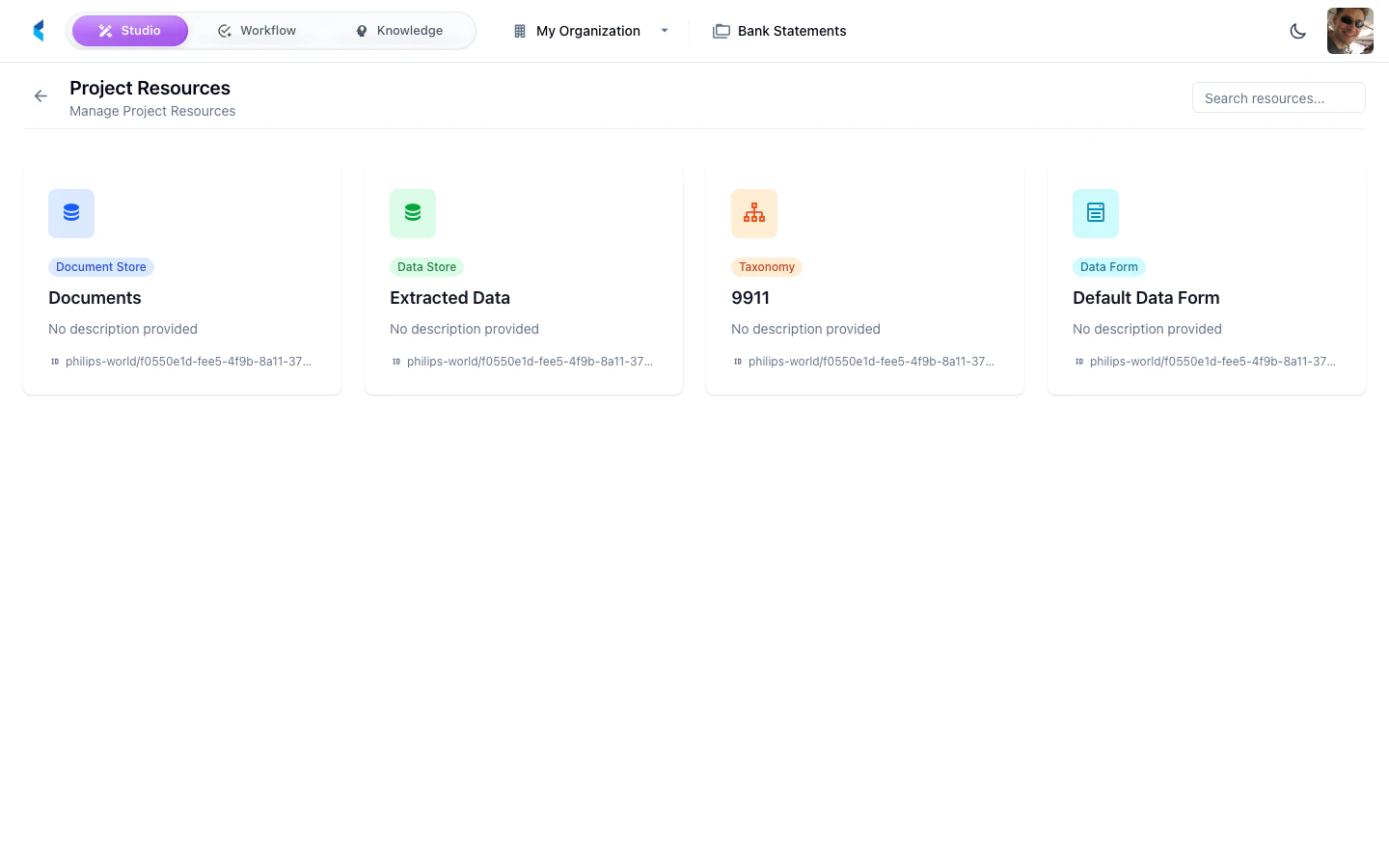
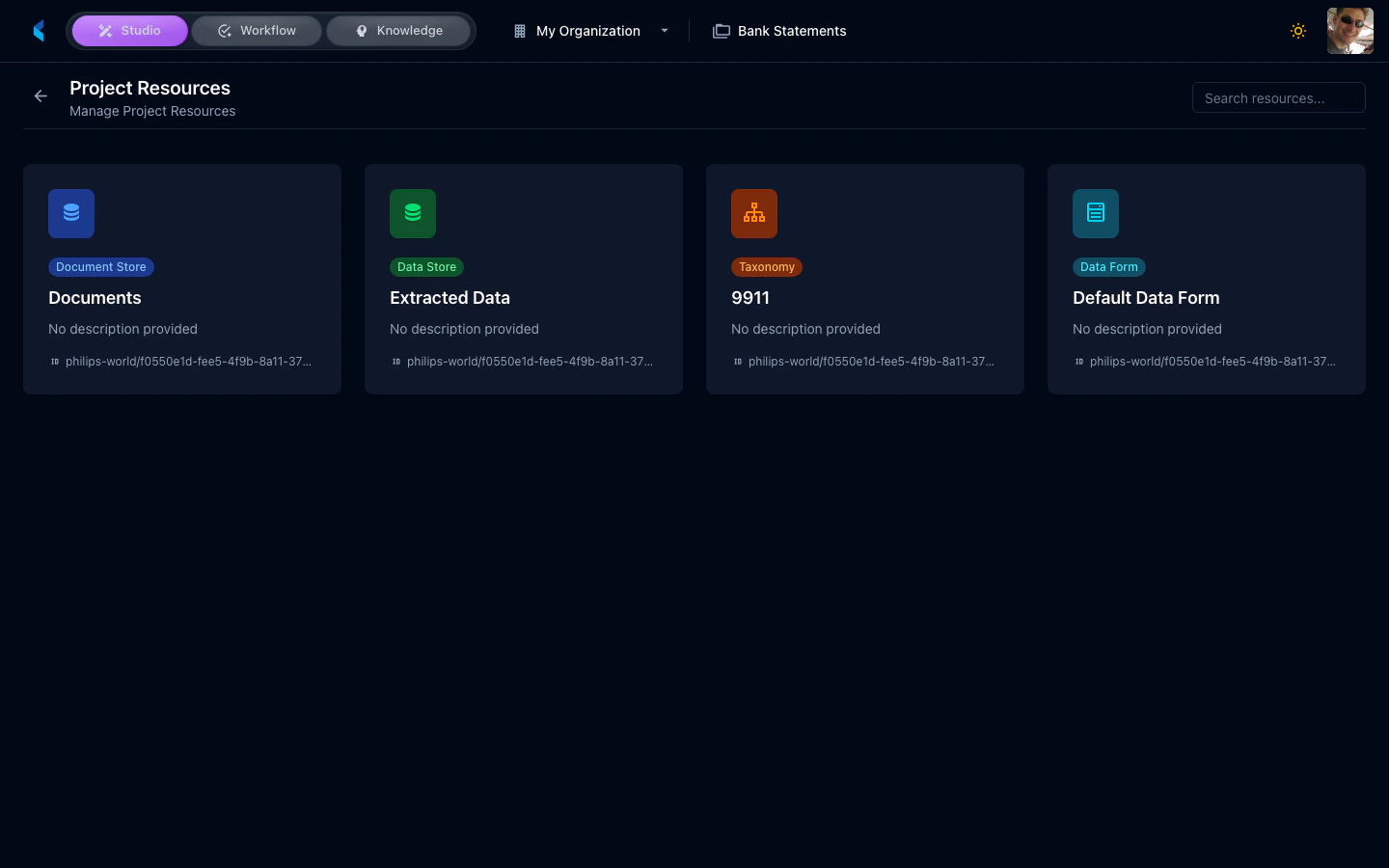
> View all resources associated with your Kodexa project in Studio, including document stores, data stores, modules, taxonomies, and project components.
The Project Resources page provides a consolidated view of all resources that are part of your project. Resources include document stores, data stores, modules, data definitions, and other components that make up your project's configuration.
 ## Resource Types
A project can contain the following types of resources:
* **Document Stores** — Storage containers for document families and their content
* **Data Stores** — Storage for structured extracted data
* **Modules** — Processing modules (infer, transformer, event) used in pipelines
* **Data Definitions** — Taxonomy schemas defining the structure of extracted data
* **Data Forms** — Interactive forms for data review and entry
* **Assistants** — AI-powered processing pipelines that orchestrate modules
## Managing Resources
From the resources grid, you can:
* **Search** — Filter resources by name or type
* **View Details** — Click a resource to see its full configuration
* **Navigate** — Jump to the resource's dedicated management page
Use the resources page to get a quick inventory of everything in your project. This is especially useful when troubleshooting pipeline issues or reviewing project configuration.
## Resource Types
A project can contain the following types of resources:
* **Document Stores** — Storage containers for document families and their content
* **Data Stores** — Storage for structured extracted data
* **Modules** — Processing modules (infer, transformer, event) used in pipelines
* **Data Definitions** — Taxonomy schemas defining the structure of extracted data
* **Data Forms** — Interactive forms for data review and entry
* **Assistants** — AI-powered processing pipelines that orchestrate modules
## Managing Resources
From the resources grid, you can:
* **Search** — Filter resources by name or type
* **View Details** — Click a resource to see its full configuration
* **Navigate** — Jump to the resource's dedicated management page
Use the resources page to get a quick inventory of everything in your project. This is especially useful when troubleshooting pipeline issues or reviewing project configuration.