
What Gets Included
When you create a template from a project, the following are captured:- Project settings and options
- Document store configurations
- Data definitions (taxonomies)
- Assistant configurations and pipeline setup
- Data forms
- Scheduled job configurations
- Project resource associations
Templates capture configuration only, not data. Documents, extracted data, and execution history are not included in the template.
Creating a Template
1
Navigate to Create Template
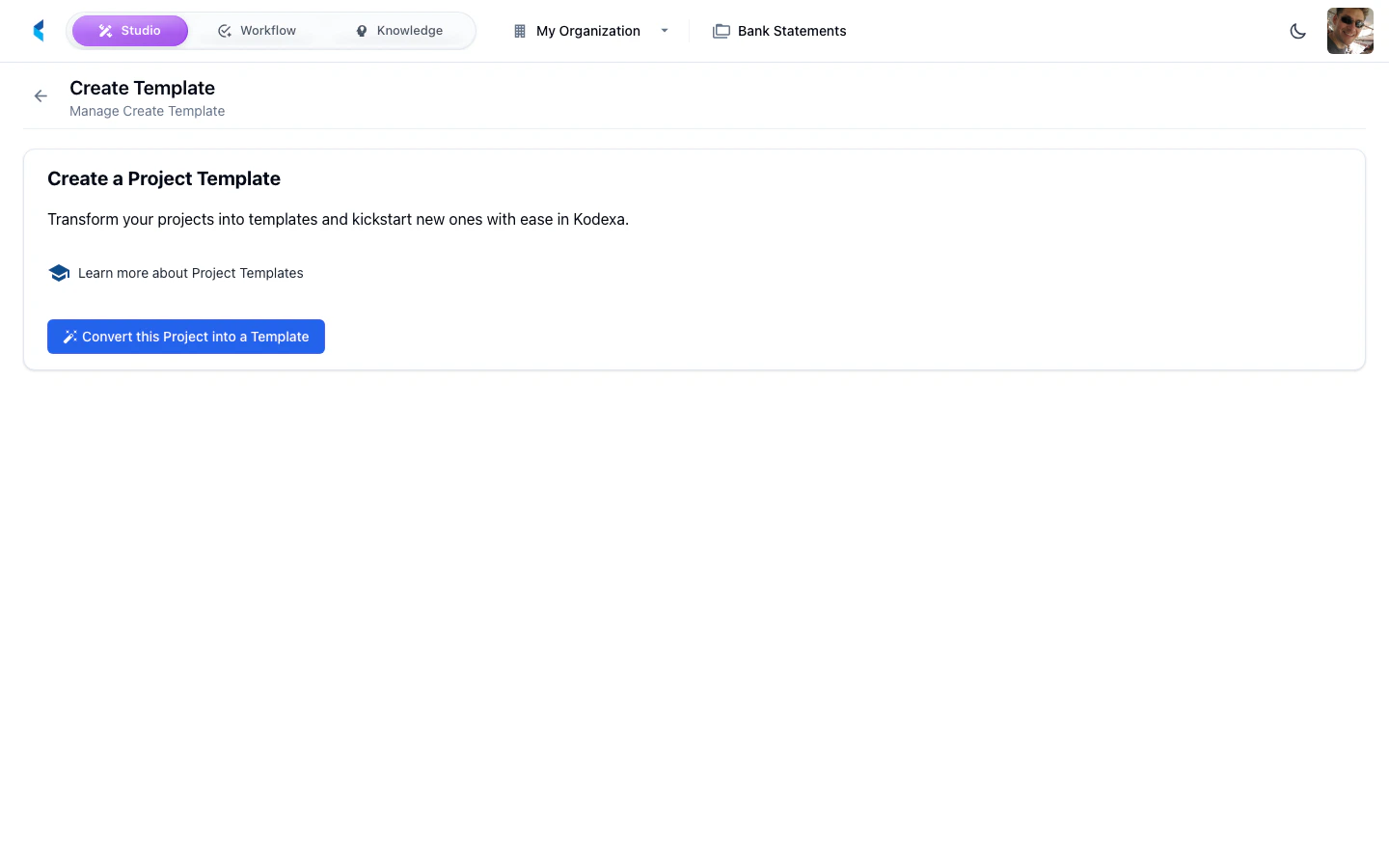
From the Project Home, click the Create Template card.
2
Configure Template
Set the template name, description, and any metadata.
3
Review Included Resources
Verify which resources and configurations will be included in the template.
4
Save Template
The template is created and becomes available in the Project Marketplace for creating new projects.