
Navigating Studio
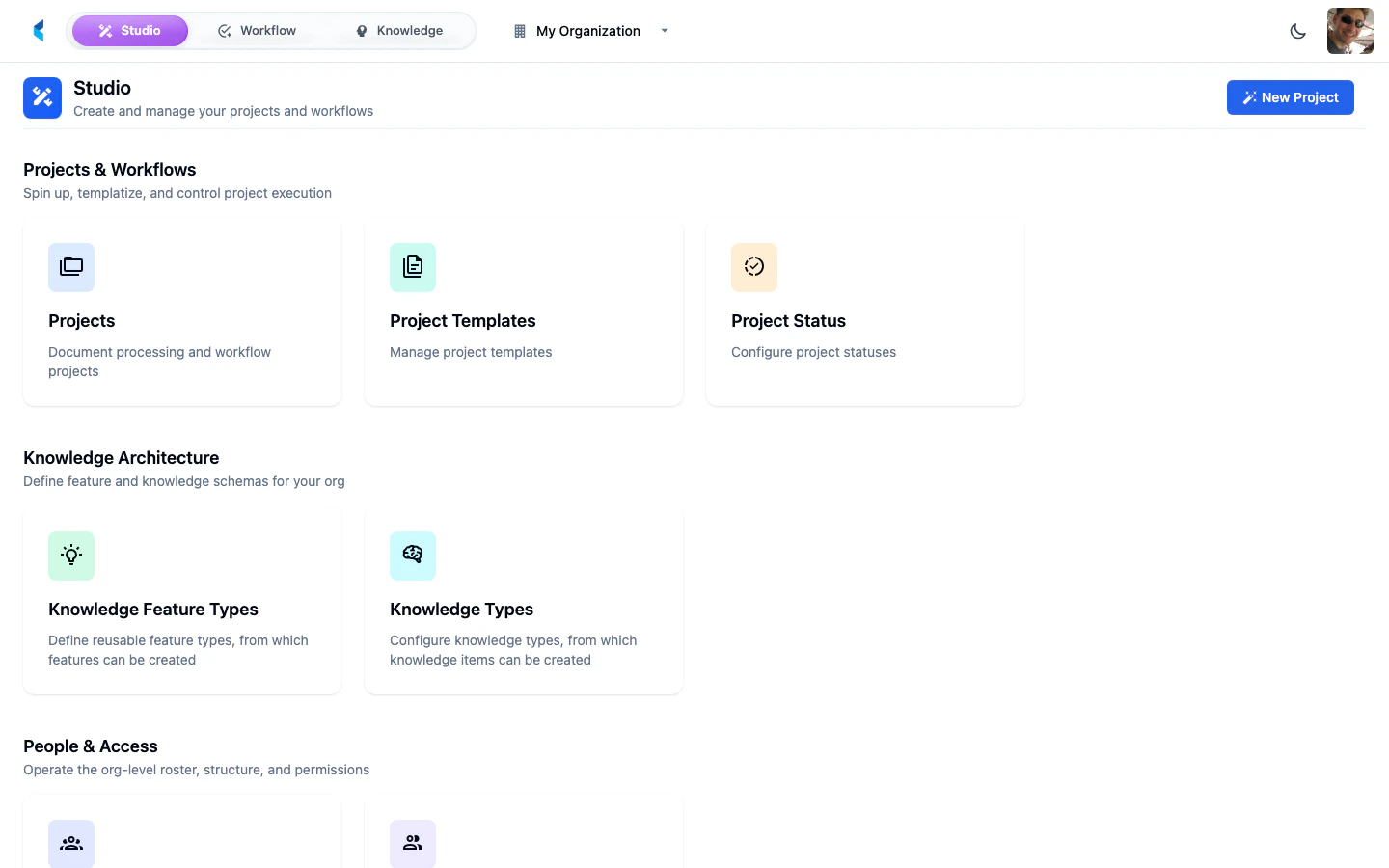
Studio uses a hierarchical navigation structure. The top navigation bar provides context switching and breadcrumb navigation to help you move between different levels of the platform.Context Switcher
The top navigation bar includes a context switcher that lets you move between three main areas of the platform:- Studio — Organization management, project configuration, and administration
- Workflow — Task management and human-in-the-loop document review
- Knowledge — Knowledge management and feature extraction
Organization & Project Breadcrumbs
As you navigate deeper into the platform, the breadcrumb trail updates to show your current location:- Organization selector — Click to switch between organizations (or press Cmd + J / Ctrl + J)
- Project breadcrumb — When inside a project, shows the current project name with a link back to the project home
Studio Hierarchy
Studio is organized into three main levels:Organization Home
Manage organization-level resources including members, teams, secrets, and knowledge configuration.
Project Home
Configure project resources, data architecture, scheduled jobs, and processing pipelines.
Workspace
Review documents, annotate data, manage tasks, and interact with AI assistants in a flexible panel-based layout.
Command Palette
Press Cmd + K (Mac) or Ctrl + K (Windows/Linux) to open the command palette. It provides quick access to navigation, actions, and search across the platform.Keyboard Shortcuts
| Action | Mac | Windows / Linux |
|---|---|---|
| Command palette | Cmd + K | Ctrl + K |
| Switch organization | Cmd + J | Ctrl + J |
| Toggle sidecar | Cmd + Shift + O | Ctrl + Shift + O |
User Menu
The user avatar menu in the top-right corner provides access to:- Profile — Manage your account details, API tokens, and preferences (including notification sounds)
- Developer Tools — Toggle developer debugging tools
- Developer Portal — Link to this documentation site
- About Kodexa — Platform version information
- Sign Out — End your session
Notification Sounds
Kodexa Studio can play audio notifications for important events. You can toggle notification sounds on or off from your Profile preferences. When enabled, sounds are played for:- Error and warning toasts — Alert sounds when something needs attention
- Channel messages — A notification sound when new messages arrive in project chat channels