
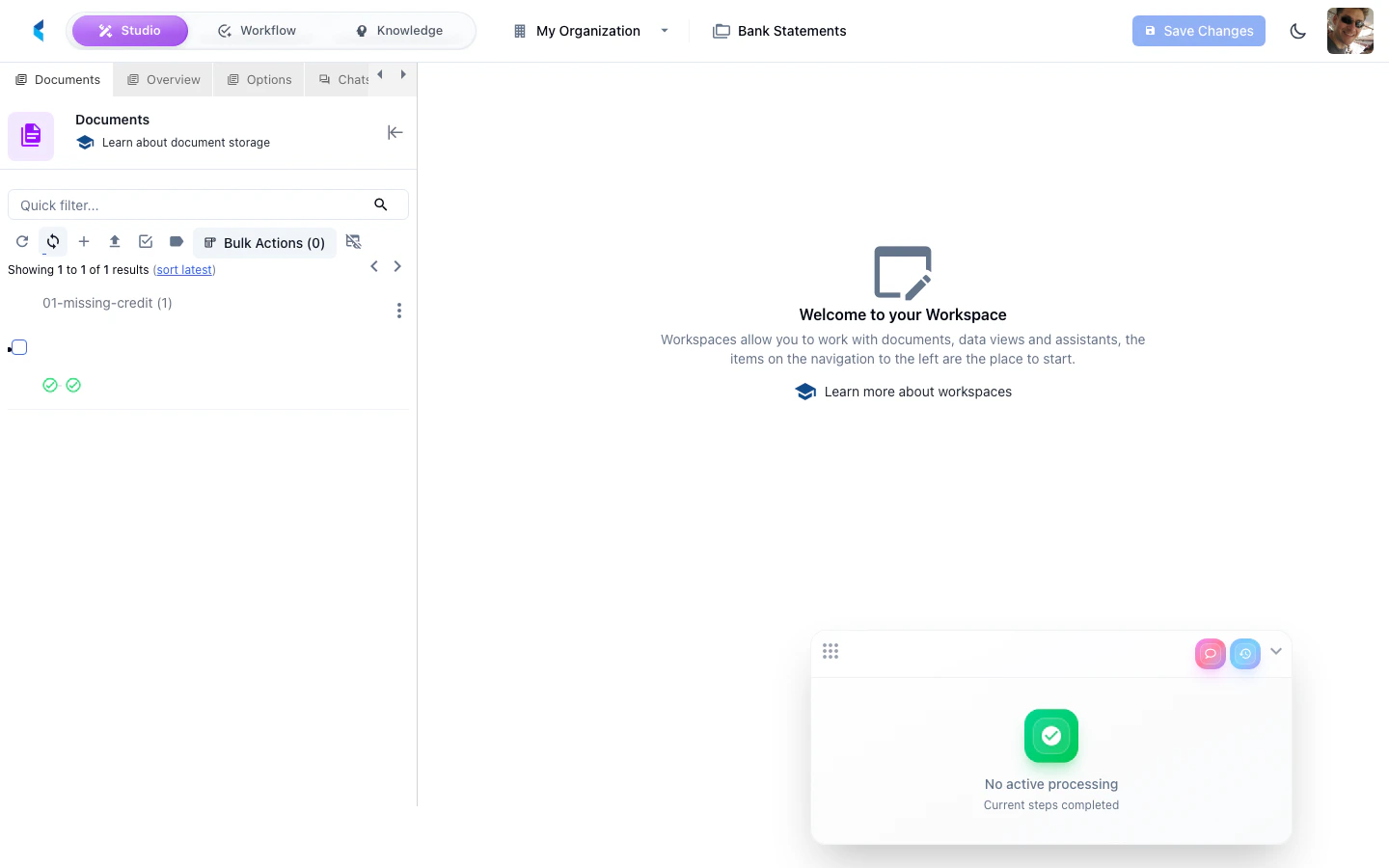
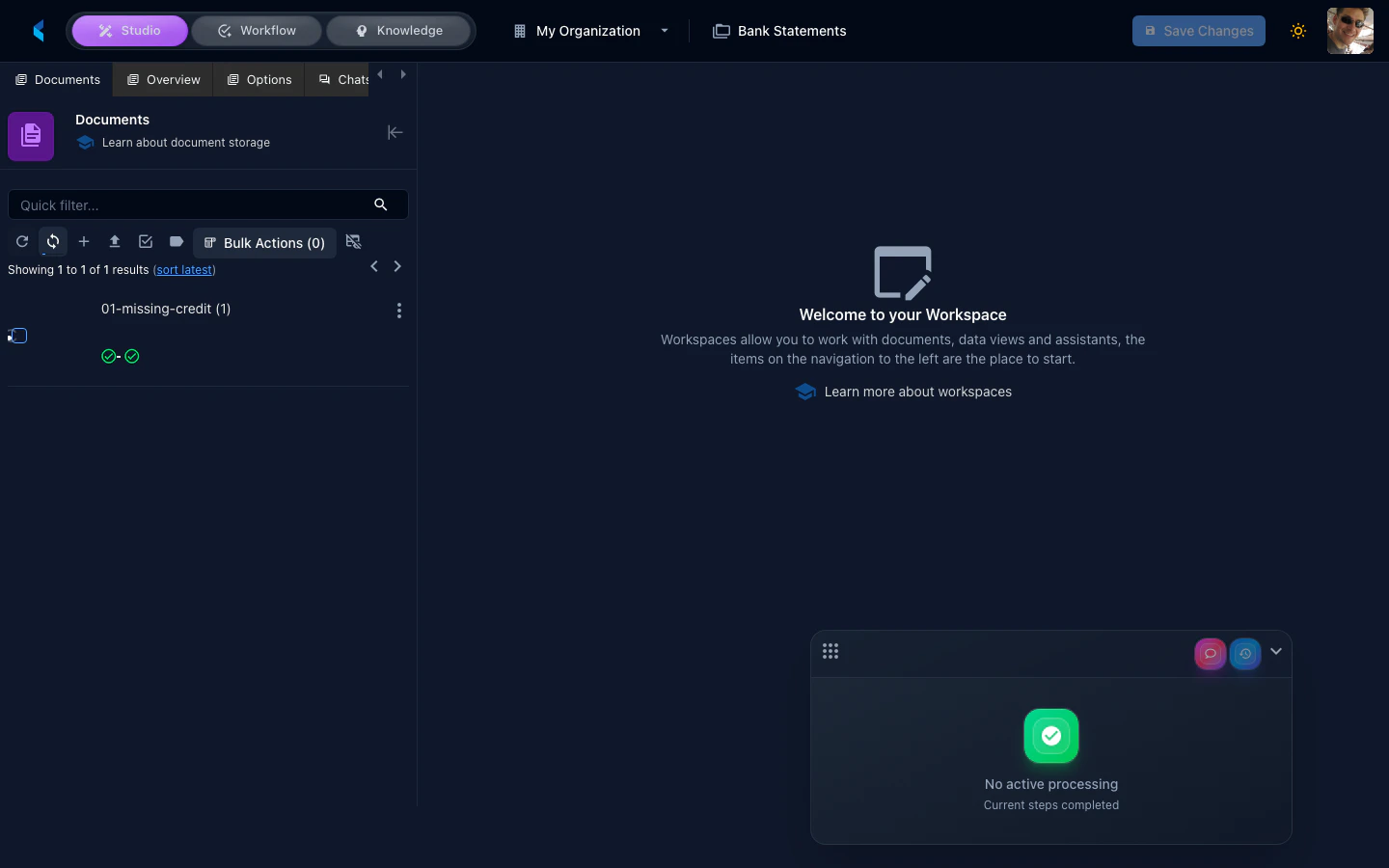
Layout Structure
The workspace is built on a dockable panel system with four main areas:Left Panel (Sidebar)
The left panel contains contextual tools and navigation organized into switchable panels. Toggle its visibility to maximize your document view area.Center (Document Views)
The center area displays your documents and data forms in tabbed views. You can open multiple documents or forms simultaneously and switch between them.Right Sidecar
The sidecar panel displays a secondary document view, such as a referenced page or related document. Toggle it with Cmd + Shift + O (Mac) or Ctrl + Shift + O (Windows/Linux).Chat Pane
The far-right chat pane provides an AI-powered conversation interface connected to your project’s channel agent. Use it to ask questions about documents, request processing, or get help with data review.Available Panels
The left sidebar provides access to the following panel types:Navigation & Search
Document structure navigation and full-text search.
Data & Annotation
Taxonomy browser, label palette, exceptions, and data forms.
Task Management
Task details, documents, notes, metadata, and audit trail.
Chat & AI
AI assistant chat and assistants configuration.
Keyboard Shortcuts
The workspace supports keyboard shortcuts for common actions:| Action | Mac | Windows / Linux |
|---|---|---|
| Toggle sidecar | Cmd + Shift + O | Ctrl + Shift + O |
Floating Helpers
The workspace includes a floating AI helper that provides contextual assistance as you work. It appears when you are not using the chat pane and can offer suggestions based on your current activity.