
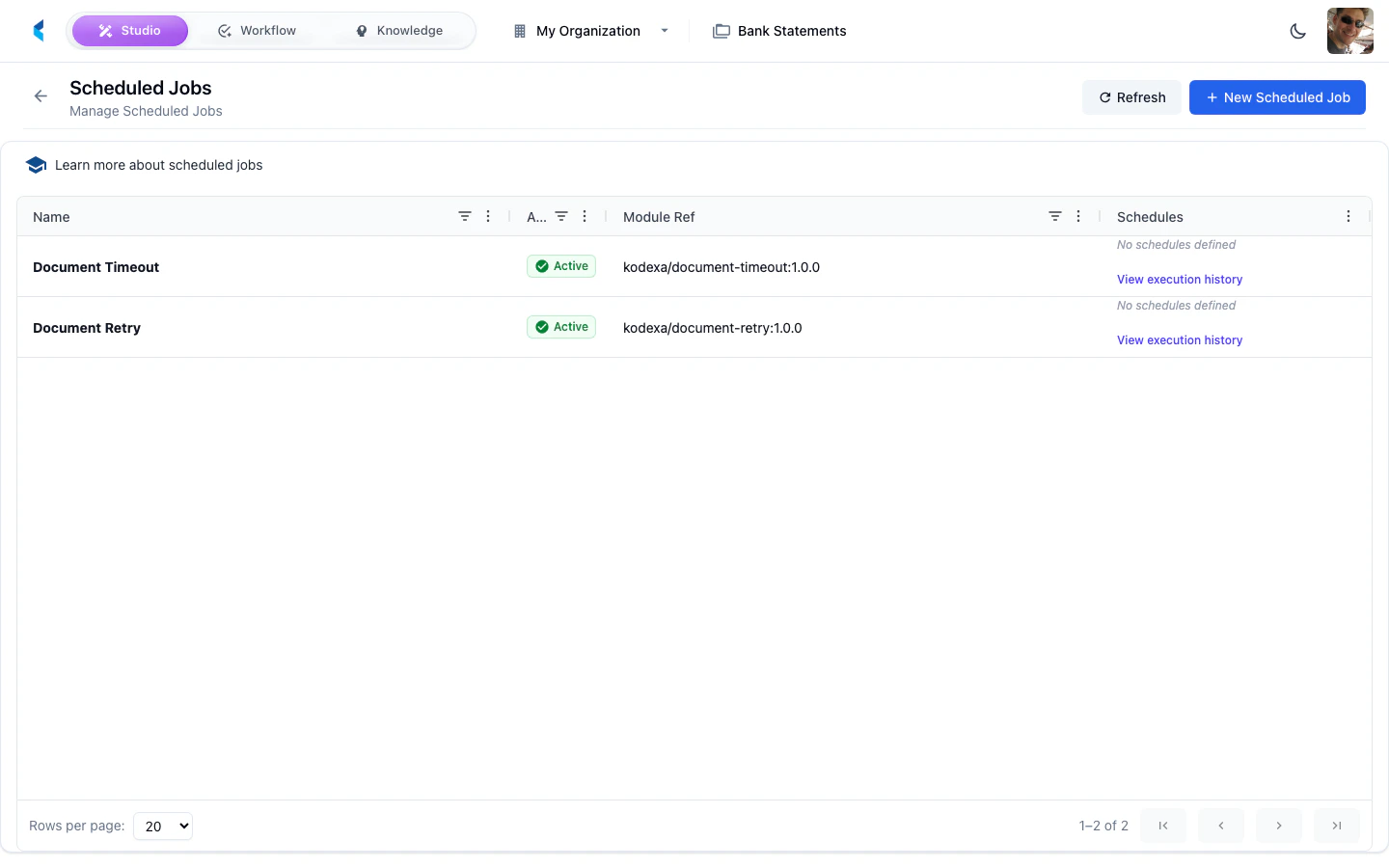
Configuring a Scheduled Job
1
Click Add Scheduled Job
Open the job creation form from the Scheduled Jobs page.
2
Select Module
Choose the processing module that should run on the schedule.
3
Set Schedule
Configure the execution schedule using cron expression syntax or a visual scheduler.
4
Configure Options
Set any module-specific options or parameters for the scheduled execution.
5
Enable
Activate the scheduled job. It will begin executing at the next scheduled time.
Managing Scheduled Jobs
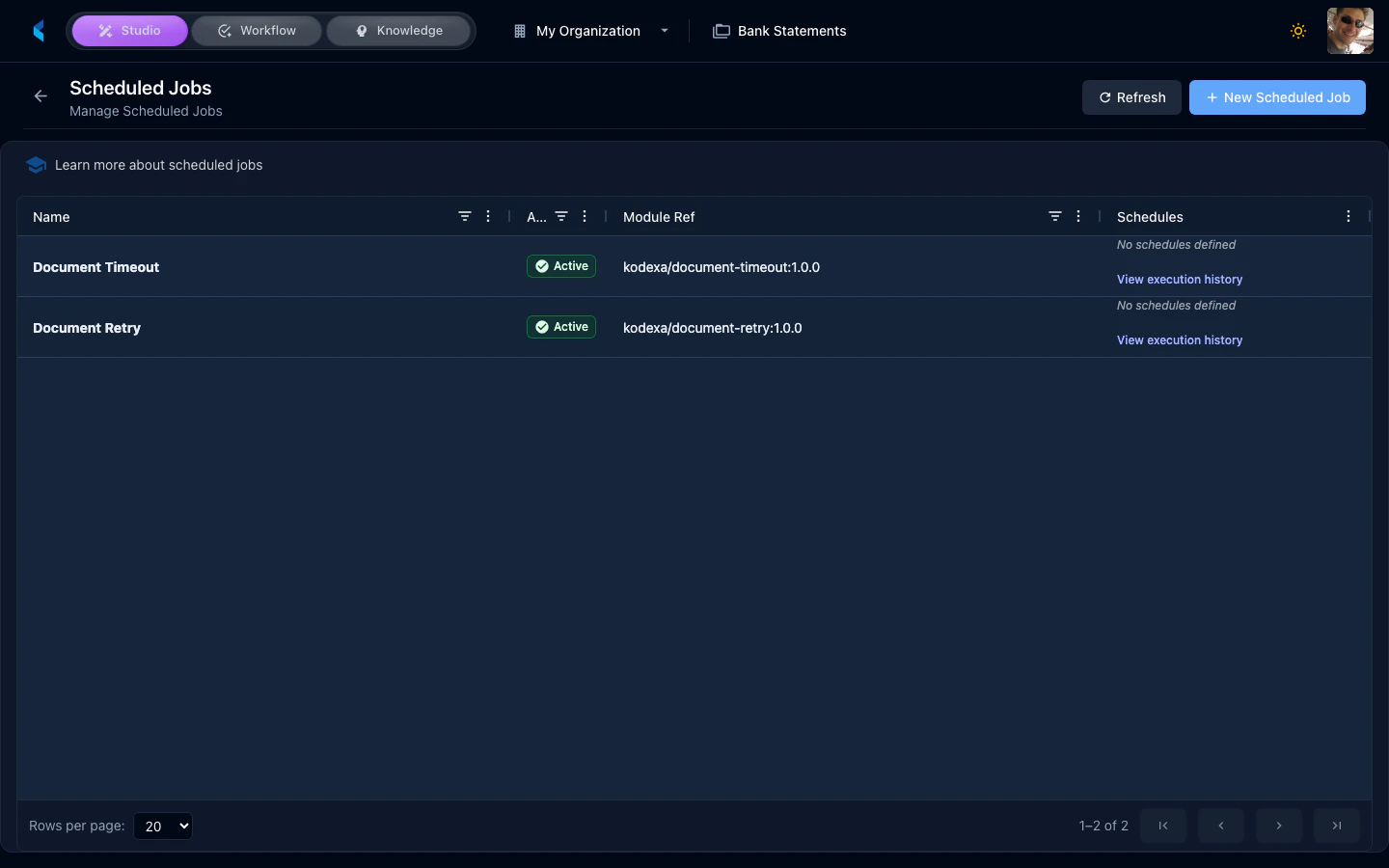
From the scheduled jobs list, you can:- Enable/Disable — Toggle a job on or off without deleting it
- Edit — Modify the schedule, module, or options
- Delete — Remove the job entirely
- View History — Jump to the execution history for a specific job
For detailed documentation on scheduled jobs and cron expressions, see the Scheduled Jobs guide.